
In this post you will learn basic skills (HTML and CSS) you can use to create modern, clean websites and you will learn why a formidable understanding of these basics gives you a real benefit when you begin developing a professional portfolio as a student and want to showcase your work to recruiters or clients. In this post, you’ll discover the essentials of HTML and CSS — the very basics every beginner should know. More importantly, you’ll understand why these skills matter when you begin creating your professional portfolio.
By understanding and anchoring ourselves on the essential elements of HTML and CSS, you not only learn to share your ideas effectively, but also demonstrate code literacy and design awareness. – the building blocks to build any web page, you not only learn to share your ideas effectively, but you have also demonstrated your code-base literacy, structure, awareness for design, and be forward-thinking. From clean markup, semantic structure, styling rules, responsive layouts, to performance and maintenance – we will talk about it all.
We’ll plunge into the world of web fundamentals so that you can go out and design your own site or portfolio with confidence.
Table of Contents
- Why HTML & CSS are Important for Beginners
- Getting Started – Tools, Setup and Environment
- HTML Fundamentals – Mark-up, Tags & Semantics
- CSS Fundamentals – Selectors, Layout & The Box Model
- Responsive Design & Best Practices
- Putting These Fundamentals to Use in Your Student Portfolio Site
- Common Beginner Mistakes and How to Avoid Them
- CTA: Ready for the Next Steps?
- FAQ (Frequently Asked Questions)
- People Also Ask (PAA)
- Conclusion
1. Why HTML & CSS are Important for Students
When you create a professional portfolio as a student, you’re not just offering screenshots or writing a paper — you’re presenting a website, an interactive environment, a real-world representation and reflection of your abilities and skills. And, behind every visible webpage is a structure, supported by two technologies, HTML and CSS.
Understanding the Role of HTML and CSS in Your Portfolio
HTML is the structure, while CSS is the appearance. Together, they create a unified and professional design. As a result, if a recruiter goes through your code or visits your site, they’ll instantly see your level of detail and care.
- HTML (HyperText Markup Language) is the structure: headings, paragraphs, lists, images, links. Take it away and your page means nothing, to the user, or the machine.
- CSS (Cascading Style Sheets) is the appearance: layout, colours, typography, spacing. It determines how your site looks, how it adapts.
Together, they represent the underpinnings of any web-based portfolio, app or site. If a recruiter goes through your code, or visits your site, they will quickly see whether you put thought into, or just applied it haphazardly — this is why we just need to get these essential building blocks in place.
Important to Remember:
- HTML and CSS are the foundational building blocks of all pages on the web, and so your portfolio site.
- Understanding how HTML and CSS work gives you control, credibility and versatility.
2. Getting Started: Tools, Setup & Environment
Before you start writing code, you need the right environment. A good file organization will save you resources. Here’s how:
2.1 Code Editor & Browser
You want a decent editor to type your code in: e.g., Visual Studio Code, Sublime Text or Atom. You’ll also want to use a modern browser (e.g., Chrome, FireFox) that has developer tools that you can use to inspect, debug and preview.
2.2 Project Folder Structure
You should create a clean folder to hold your site:
/portfolio-site
index.html
styles.css
/images
/scripts (optional)
A good file organization will save you resources when you are updating or scaling your project.
2.3 Local Preview & Deployment
I would recommend previewing locally while you develop your site. You can later deploy to a free host (e.g., GitHub Pages, or to your own domain purchased from Present Pakistan). You want to write your links correctly so you’ll know that your CSS and images are correctly referenced.
After that, once you’re comfortable in this environment, you are also ready to write the content of your portfolio, which is ultimately the most important thing. This matters when you want to create a professional portfolio as a student.
Take Away:
- Use a suitable editor + browser with dev tools.
- Organize your project properly from the start.
3. HTML Basics: Structure, Tags & Semantics
3.1 HTML Document Skeleton
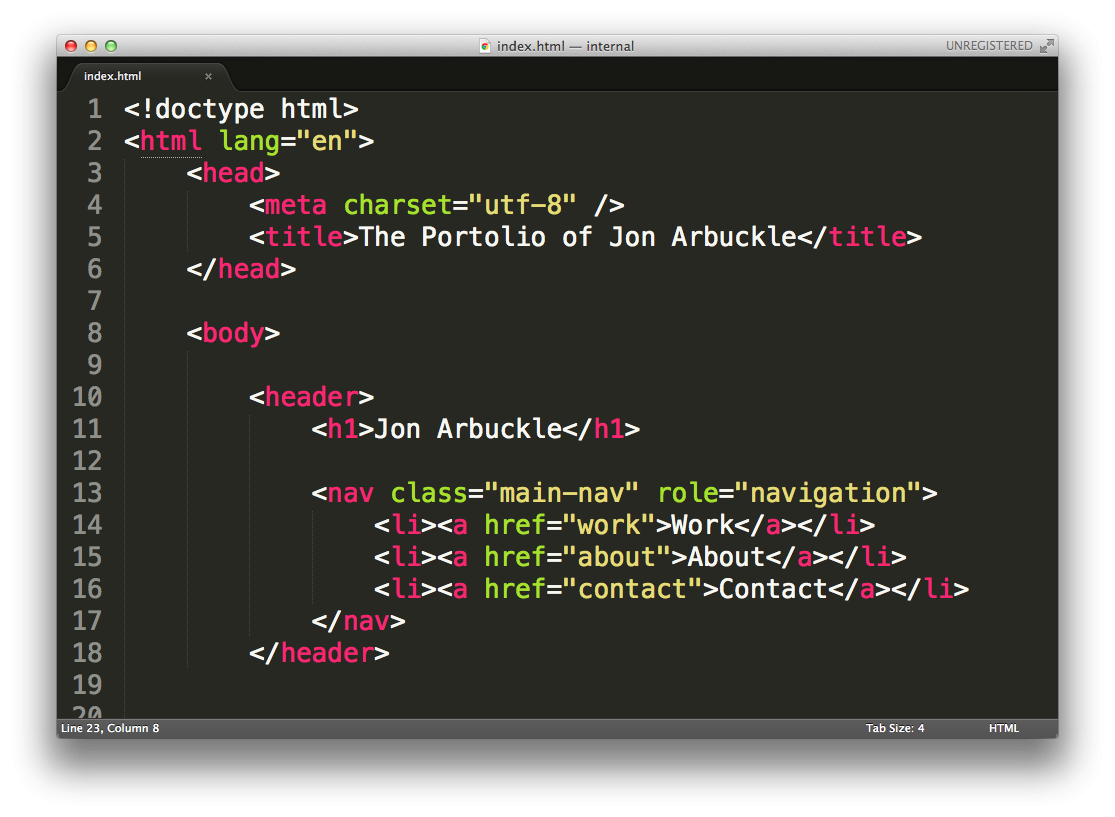
To begin with, every HTML page starts with this basic structure:
<!DOCTYPE html>
<html lang=”en”>
<head>
<meta charset=”UTF-8″>
<meta name=”viewport” content=”width=device-width, initial-scale=1.0″>
<title>Your Name | Portfolio</title>
<link rel=”stylesheet” href=”styles.css”>
</head>
<body>
<!– content –>
</body>
</html>
This identifies your document, language, metadata and links your CSS.
3.2 Semantic Tags that Matter
Instead of generic <div>
use meaningful tags:
- <header>, <nav>, <main>, <footer>
- <section>, <article>
- <h1>, <h2>, … for headings
- <p> for paragraphs
- <ul>, <li> for lists
- <a> for links,
- <img> for images
Moreover, semantic tags improve accessibility and help search engines interpret your page more effectively – really important if you want a student to find your site and for it to look professional.
3.3 Sample Structure
<header>
<h1>John Doe – Web Developer</h1>
<nav><a href=”#projects”>Projects</a> | <a href=”#about”>About Me</a></nav>
</header>
<main>
<section id=”projects”>
<h2>Featured Projects</h2>
<article>
<h3>Project One</h3>
<p>Short description …</p>
</article>
<!– more projects –>
</section>
</main>
<footer>
<p>© 2025 John Doe</p>
</footer>
The use of clear headings and name attributes is helpful for users and search engines.
Key Points:
- Use correct HTML tags and semantic structure.
- Semantic HTML improves accessibility, ease of reading, and looks more professional.
4. CSS Foundations: Selectors, Layout & The Box Model
4.1 Selectors & Rules
CSS rules look like this:
h1 {
color: #222;
font-size: 2.5rem;
}
Selectors are used to target HTML elements; declarations specify the styling.
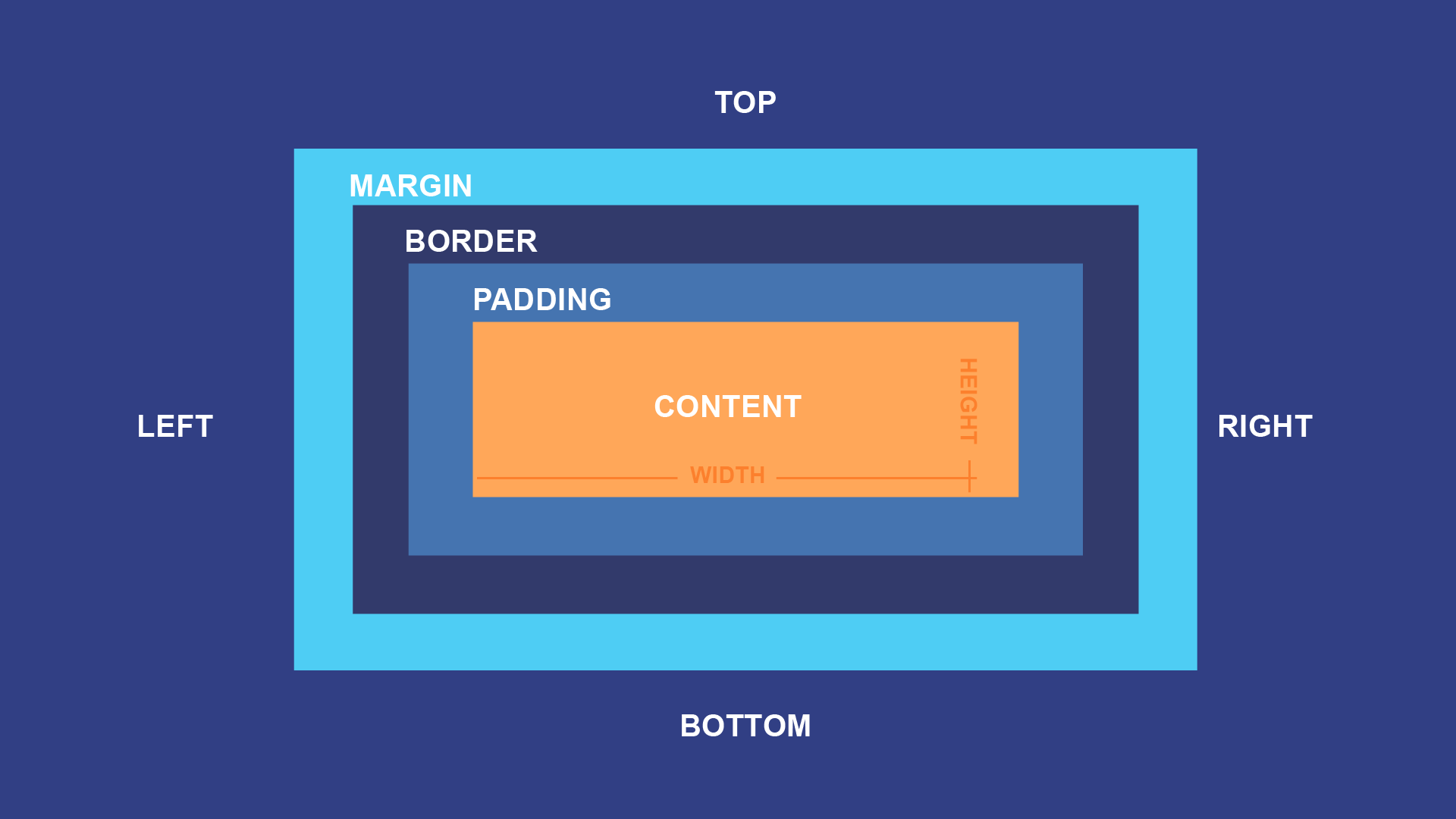
4.2 Box Model Basics
Essentially, every element is a box with content → padding → border → margin. Knowing this helps with spacing, alignment and layout.
4.3 Layout Options: Flexbox & Grid
Furthermore, modern CSS provides several powerful layout options such as Flexbox and Grid:
- Flexbox works on one-dimensional alignment (row or column)
- CSS Grid works on two-dimensional layout (rows + columns)
Example:
.projects {
display: grid;
grid-template-columns: repeat(auto-fill, minmax(300px, 1fr));
gap: 20px;
}
4.4 Colors, Typography & Variables
Define variables for consistency:
:root {
–primary-color: #1e90ff;
–font-family: ‘Segoe UI’, sans-serif;
}
body {
font-family: var(–font-family);
color: #333;
}
Therefore, when you design the portfolio site for your student work, these details will just finish it off nicely.
Key Points:
- You’ll use CSS to style moving forward; as you style, you’ll use CSS to control layouts and also space.
- With Flexbox, Grid and the box model you’ll be a layout expert.
5 Responsive Design & Best Practices

Ideally, your site should look great across all devices — mobile, tablet, and desktop.
5.1 Mobile-First Design
Explain that building mobile-first can be a great way to get started. Mobile-first is building the simplest, smallest screen version first, as the default skilled layout. The larger layouts will be derivatives of the default, often with media queries looking something like this:
@media (min-width: 768px) {
.hero {
padding: 100px 40px;
}
}
5.2 Image Optimization & Performance
For instance, one common mistake is using large, uncompressed images that slow loading time. A compressed image provides a better experience for users as well. You should use modern formats if available (WebP) and features like lazy loading. You should provide alt attributes for images as well, to enhance experience, accessibility and SEO.
5.3 Accessibility & SEO
This is an example.
- alt text: meaningfull, sel.es and context.
- Color contrast:Ensure sufficient contrast
- Logical headers:Use logical heading order (<h1>→<h2>…)
- Keyboard-navigated links and forms
5.4 SEO & User Experience
Consequently, when you build your professional portfolio, focus on mobile responsiveness and accessibility.and you are a student, time on a responsive and accessibility design will really matter. A recruiter may be casually opening your portfolio on a mobile device. Search engines and robots privilege mobile-friendly pages.
Key Points:
- Design your project(s) for multiple devices.
- Image optimization & performance will help enhance your user experience.
- Accessibility and SEO become baked into your process, rather than extra.
6. How To Use These Basics on Your Student Portfolio Site
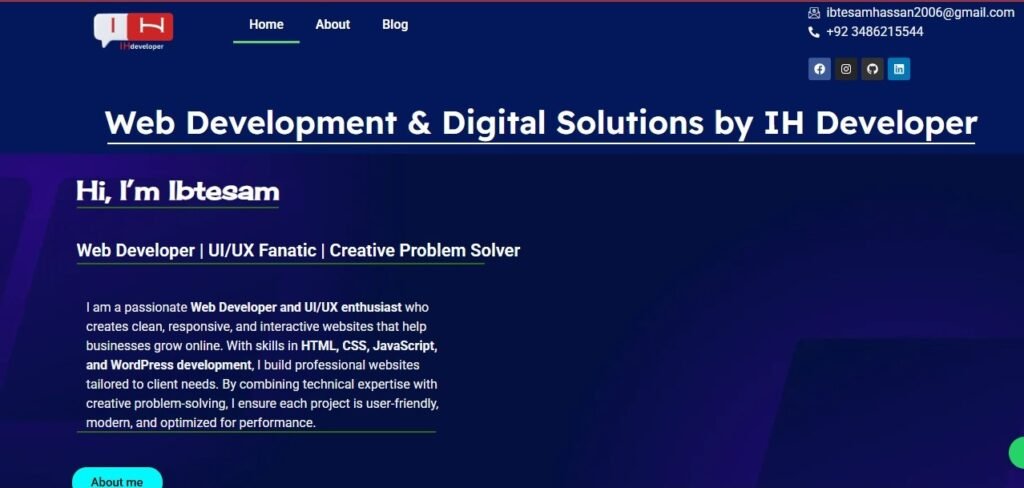
At this point, this is how you can bring everything together to build your portfolio site hosted (let’s say) by ihdeveloper.com.
6.1 Home / Welcome Section
The Structure:
<section class=”hero”>
<h1>Hi, I’m [A Name]</h1>
<p>A student web-developer creating clean, responsive websites.</p>
<a href=”#projects” class=”btn”>See My Work</a>
</section>
CSS:
.hero {
text-align: center;
padding: 80px 20px;
background-color: #f8f9fa;
}
6.2 About Me / Skills
Use <section id=”about”>, list tools (HTML5, CSS3, JavaScript, Git). Provide a short narrative of your journey.
6.3 Projects Showcase
Utilize the grid layout discussed:
<section id=”projects”>
<h2>Featured Projects</h2>
<div class=”projects”>
<article class=”project-card”>
<img src=”images/project1-screenshot.jpg” alt=”Screenshot of Project One”>
<h3>Project One</h3>
<p>A responsive web application built with HTML & CSS and JavaScript.</p>
</article>
<!– more cards –>
</div>
</section>
This will show that you demonstrated your applied HTML & CSS skills — the focus of your objective to create a professional portfolio as a student.
6.4 Contact / Call To Action
Additionally, add a simple contact form or link to make communication easier. Keep it simple and clean. Provide links to GitHub, LinkedIn, etc.
6.5 Hosting, Domain & Deployment
After deploying it, check to make sure your paths are functioning, the CSS and JS are loading properly, and that your site is responsive to different screen sizes. Link your domain to your site and check to make sure your meta tags (title, description) are correct.
Key Points:
- Utilize the HTML & CSS fundamentals to lay out each section of your portfolio site.
- Demonstrate the tangible use of what you’ve learned.
- This helps to establish your technical credibility as you are building a professional portfolio as a student.
7. Common Beginner Mistakes and How to Avoid Them
7.1 Over-using Templates
Templates save time, however, they also hide what the HTML & CSS is doing behind the scenes. Either change the code yourself, or use the site for a basis and modify the code to whatever you have changed. Having everything displayed in its original structure or styles has added value to your portfolio.
7.2 Ignoring Responsive Design
If you only conditionally look at a desktop site, your site may offer a completely unusable experience on smaller screens. Always preview for mobile and tablet.
7.3 Poor Folder Structure
Putting everything into one folder – mixing your images, CSS and scripts – creates a messy experience for managing updates. A good folder structure matters.
7.4 Non-Semantic HTML
Using <d>s excessive amounts instead of utilizing semantic tags impact accessibility and SEO. Use <header>, <main>, <footer> where appropriate.
7.5 Using Large/Uncompressed Images
Large images slow your site down, especially if you consider mobile speeds. Make sure you optimizing images for faster loading times.
7.6 Ignoring accessibility & SEO
Not using alt text, don’t follow heading hierarchies, or don’t include meta description or title tag, may feel like small detail. However, they all matters A LOT if you are trying to build a professional website as a student.
Key Points:
- Get to know your templates instead of just using them, and customize to your needs.
- Organize, responsive design, semantic markup & performance.
CTA: Are you ready to move forward?
If you are serious about taking your portfolio to the next level? I would love to warmly invite you to check out https://ihdeveloper.com and see how others are showcasing their work online. You can then take those HTML & CSS basics that we have just discussed and make some of your own work on your own platform, or remake or improve your own site. Do you want some feedback or guidance in terms of your code, layout or design? I would welcome your inquiry for a review of your work during our Frequently Asked Questions post. And lastly, don’t forget about what we have done together, must leverage your Portfolio, so that it helps you stand out from the noise and earn your next opportunity.
FAQ:
Q1: What are the most important HTML tags to learn first for a portfolio?
To begin your journey in building your site and showcasing skill, use tags such as <h1>, <h2>, <p>, <a>, <img>, <section>, <article>, <header>, <footer>.These tags encompass all aspects of structure, navigation and content purpose. As you become familiar and comfortable, you will build your portfolio site using these tags, thus building a professional portfolio as a student.
Q2: How long does it take to learn the basics of CSS to create a portfolio?
With practice habitually, potentially for an hour or two a day over 1-3 weeks, you’ll get comfortable using selectors, layout (flex/grid), typography and spacing. CSS for portfolio use may take longer as you fine-tune for responsiveness, performance & design aesthetics.
Q3: Must I use JavaScript when launching a student portfolio site?
Not at all! While JavaScript is what makes something interactive, you certainly can launch a very credible and professional student portfolio using only HTML & CSS. The foundation is more than sufficient to develop a professional portfolio as a student and demonstrate a coding foundation to corroborate your skills.
Q4: How many projects should I include in my student portfolio?
Quality is more important than quantity. 5-10 strong, applicable projects showcasing and demonstrating your skills, learning, and growth is a reasonable limit. Each project needs to be constructed with HTML & CSS, in a manner conveying you understand fundamental web development processes. This is a strategy for developing a professional portfolio as a student; it captivates your audience rather than overwhelming them.
Q5: How often should I update my portfolio site?
Every 3-6 months is adequate. As you learn new skills (advanced CSS, frameworks, JavaScript) or complete new projects, be prepared to update your site. Remove irrelevant or outdated projects, and highlight your recent and relevant work. This bundles with keeping your portfolio updated periodically — it is very important as you grow and continue to build a credible and professional portfolio as a student!
People Also Ask
How do I begin learning HTML & CSS as a complete beginner?
Start with the skeleton of a single HTML page: headings, paragraphs, lists, links and images. Then link a CSS file, and add some basic styles: colour, font, spacing. Once you have a feel for it, you’ll want to build in some layout techniques (like flex or grid) as well as responsive design. Also, building a site for you (an example – your portfolio) will help keep you organized and motivated.
Is CSS harder to learn than HTML?
Yes, in many cases it is. HTML is more straightforward (tags, structure). CSS incorporates a number of different ideas like selectors, specificity, inheritance, layout, how to make things responsive, etc. However, as you practice and build (your portfolio or whatever it may be), it gets easier and is often enjoyable.
What are some good resources for practicing HTML & CSS for a portfolio?
Free online resources (such as MDN Web Docs, and even W3Schools) and interactive courses are great places to understand the basics. After that, it’s time to apply what you have learned and build a real site! Structure your “About Me”, “Projects”, “Contact”, sections with HTML & CSS. This real-life example will help you discuss what you contributed for your professional portfolio as a student.
How will a responsive design affect the SEO of my portfolio?
A mobile-responsive website offers a good experience for users accessing your portfolio on any device. Search engines like Google will prefer a mobile-friendly, responsive design. Poor mobile experience will hurt your rankings and user engagement, which will affect your portfolio’s visibility and credibility.
Conclusions
By understanding some of the HTML & CSS fundamentals, you not only have the ability to build a website, but to also build a professional presence for yourself. If you are a student developing a professional portfolio, your website can provide your voice, your resume and your portfolio in a unified way. By knowing about structure, style, design, responsiveness and performance, you differentiate yourself and prepare yourself for learning in the future.
Start today, practice regularly, committed to enhancing your portfolio and let your code be remarkable for your ambition, growth and skills you have developed. Happy coding and best of fortune on your journey!